
Guides
Windows 10 – Installation and Activation
This guide will take you step by step through the process of installing and activating Windows 10. Whether you’re upgrading from an older version or performing a fresh installation, we’ll walk you through downloading the necessary files, setting up your system, and ensuring successful activation. By following these instructions, you can enjoy a smooth Windows 10 experience with full access to all features and updates. Let’s get started!
Download and Install Windows 10
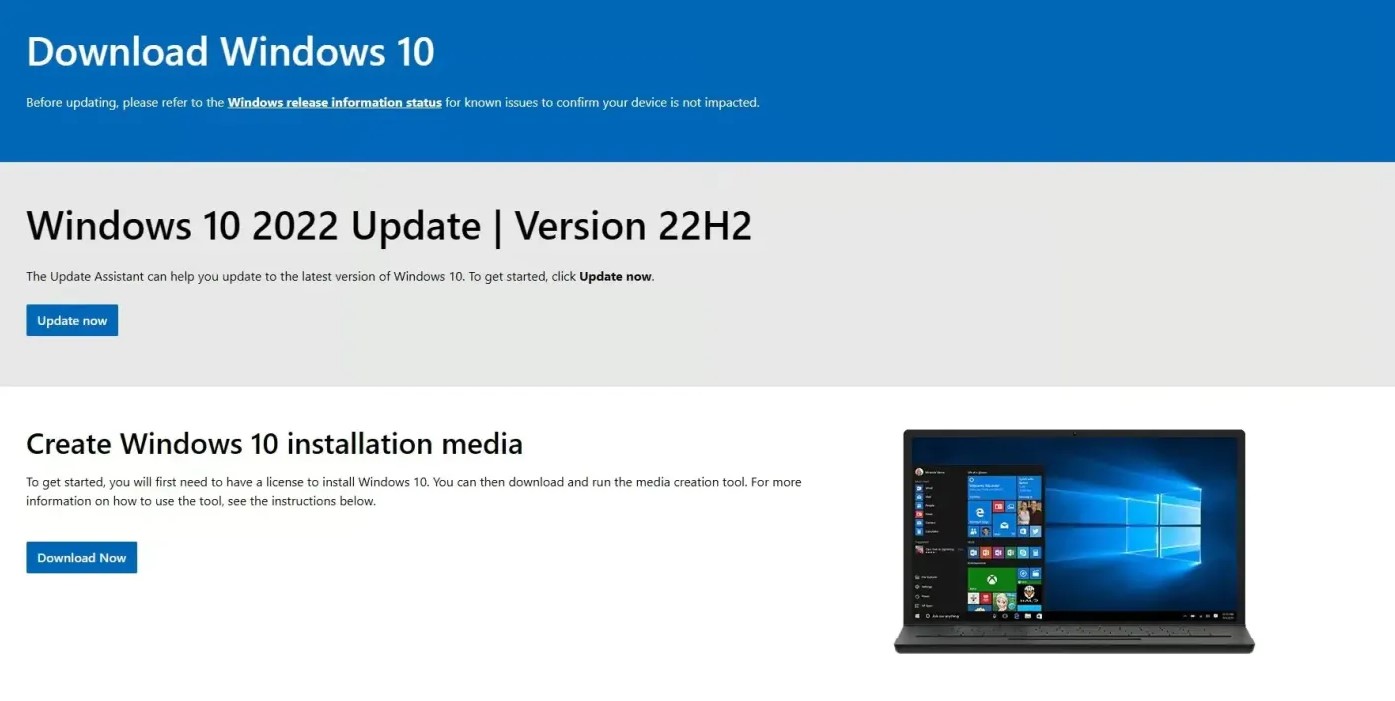
- Visit Microsoft’s Windows 10 download page.
- Choose your preferred installation method (e.g., Upgrade Now or Create Installation Media).
- Follow the on-screen instructions to download and install Windows 10.
Note: You can start the Windows 10 setup by clicking the button below.
Open Activation Settings
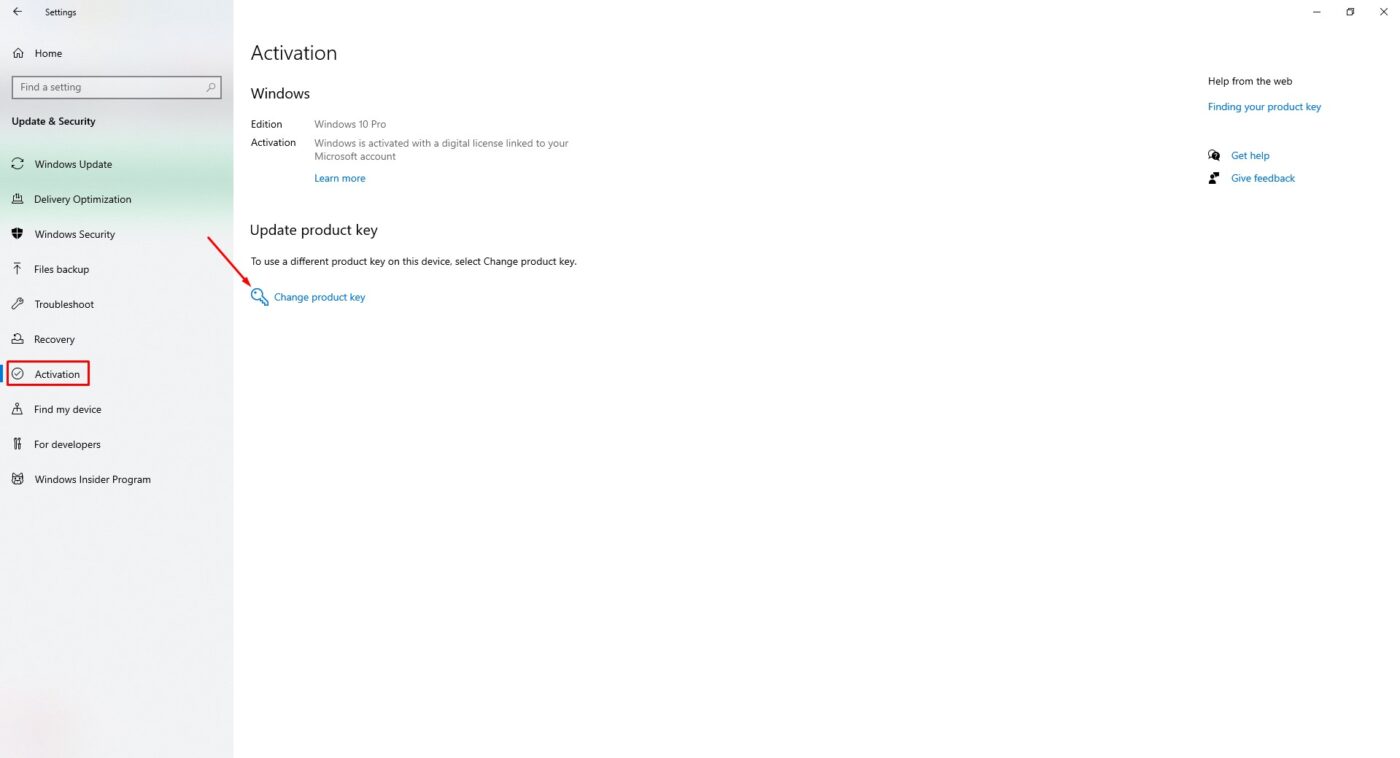
- Click the Start button in the bottom-left corner of your screen.
- Go to Settings, then select Update & Security.
- In the Activation section, click Change product key.
Activating Windows 10
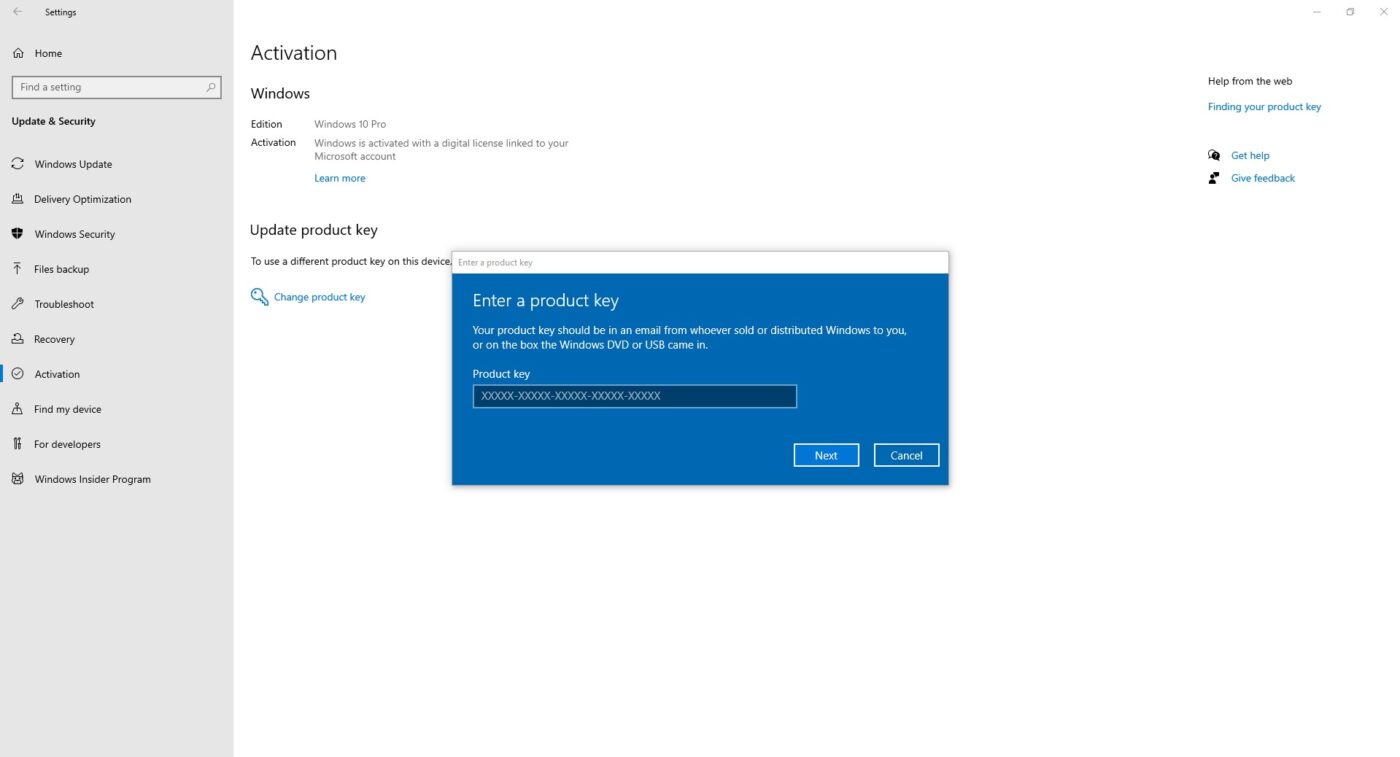
- Open the Activation Settings.
- Click Change product key.
- Enter your valid 25-character product key.
- Click Next and follow the on-screen instructions.
Once these steps are completed, Windows 10 will be successfully activated.
Need Help?
If you experience any installation or activation issues, our support team is available 24/7. Get fast assistance via live chat at https://windowskeys.uk/ or email us at [email protected].
Get Your Windows Key
Need a key for Windows 10? Buy a genuine Windows 10 Pro key or Windows 10 Home key. Microsoft ended support for Windows 10 on 14 October 2025, so for new installations we recommend a Windows 11 Pro key – see all our cheap Windows keys.