
Guides
Windows 11 – Installation and Activation
This guide provides step-by-step instructions on how to install and activate Windows 11. It covers system requirements, creating installation media, performing a clean installation or upgrade, and troubleshooting common activation issues. Whether you’re setting up Windows 11 for the first time or need help with activation, this guide ensures a smooth process.
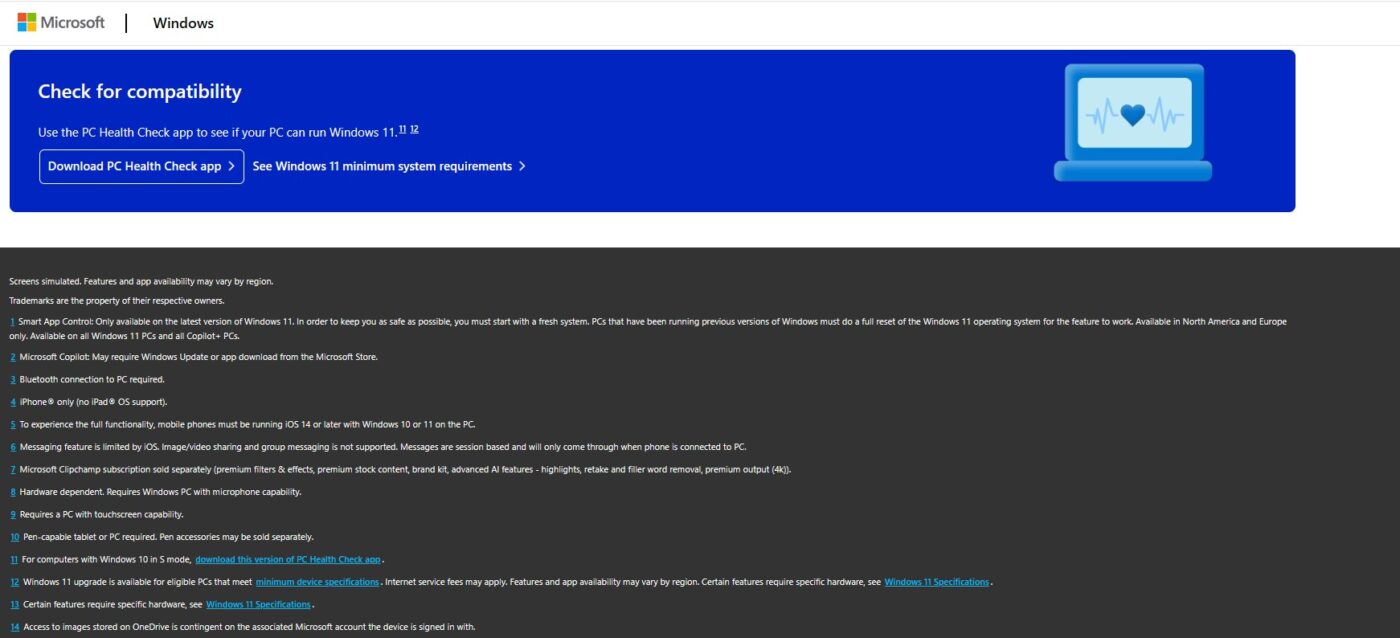
Check Windows 11 Compatibility on Your Device
Use the PC Health Check Tool:
- Download the PC Health Check tool from the official Microsoft website.
- Install and open the tool on your device.
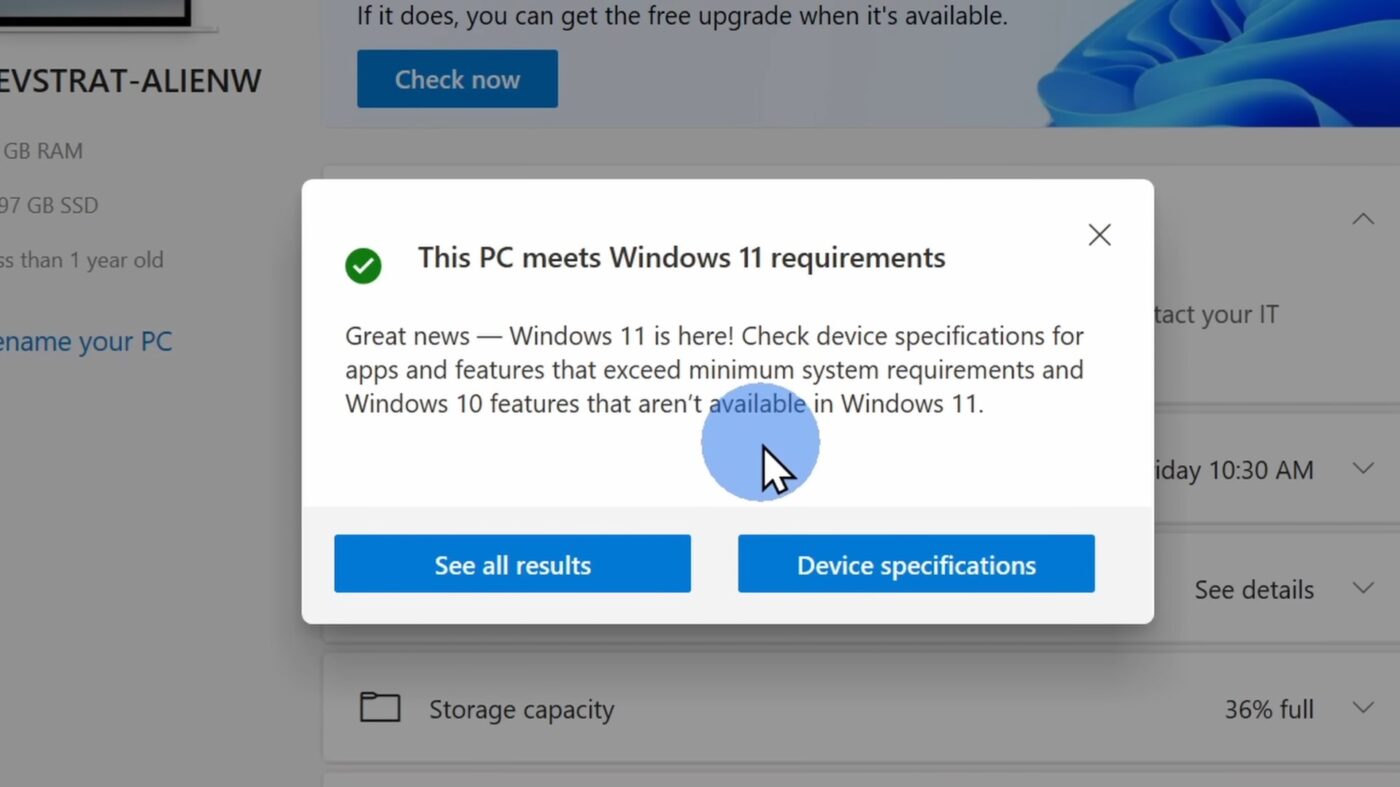
- Click the Check Now button to start the compatibility check.
- Wait for the tool to scan your system and display the results.
- Review the results to determine if your device meets the Windows 11 system requirements.
If your device is compatible, the tool will confirm that it can run Windows 11. If not, it will specify which components need to be upgraded.
Download and Install Windows 11
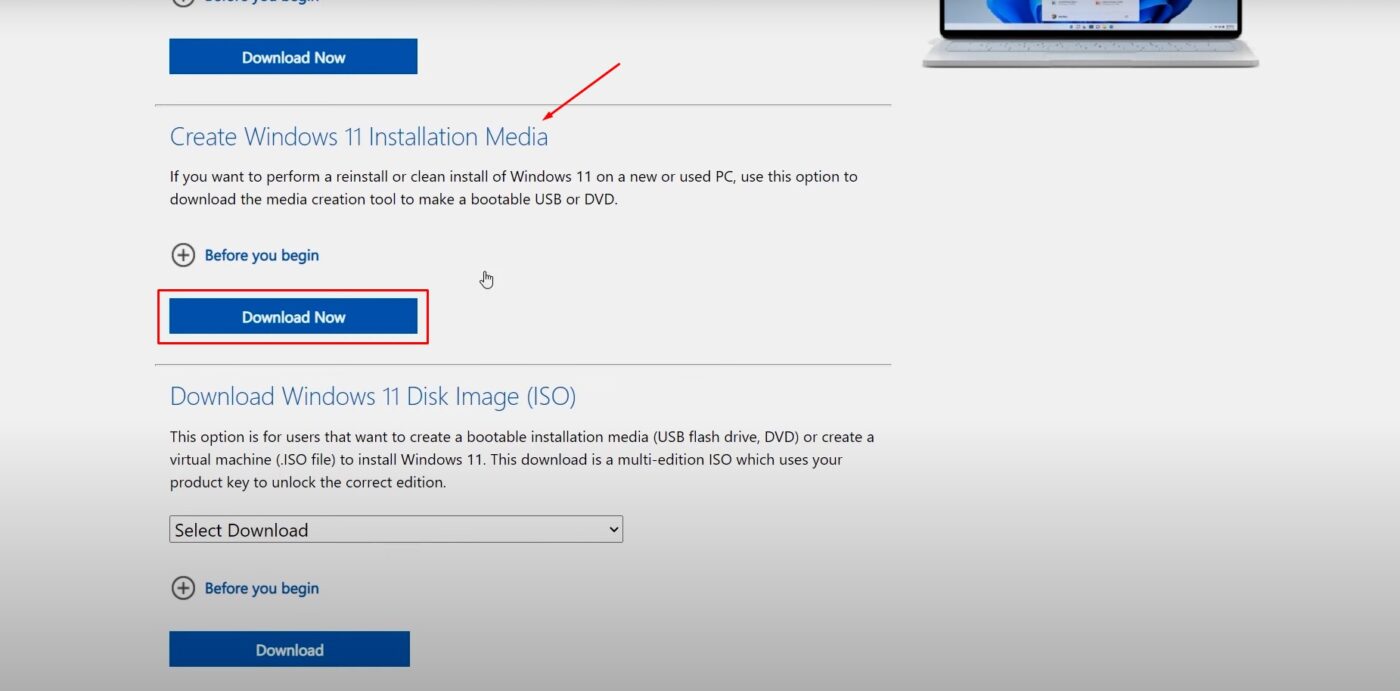
- Visit the official website – Go to Microsoft’s Windows 11 download page.
- Choose an installation method – Select “Upgrade Now” to update your current system or “Create Installation Media” for a fresh install.
- Download the setup file – Follow the on-screen instructions to download the necessary files.
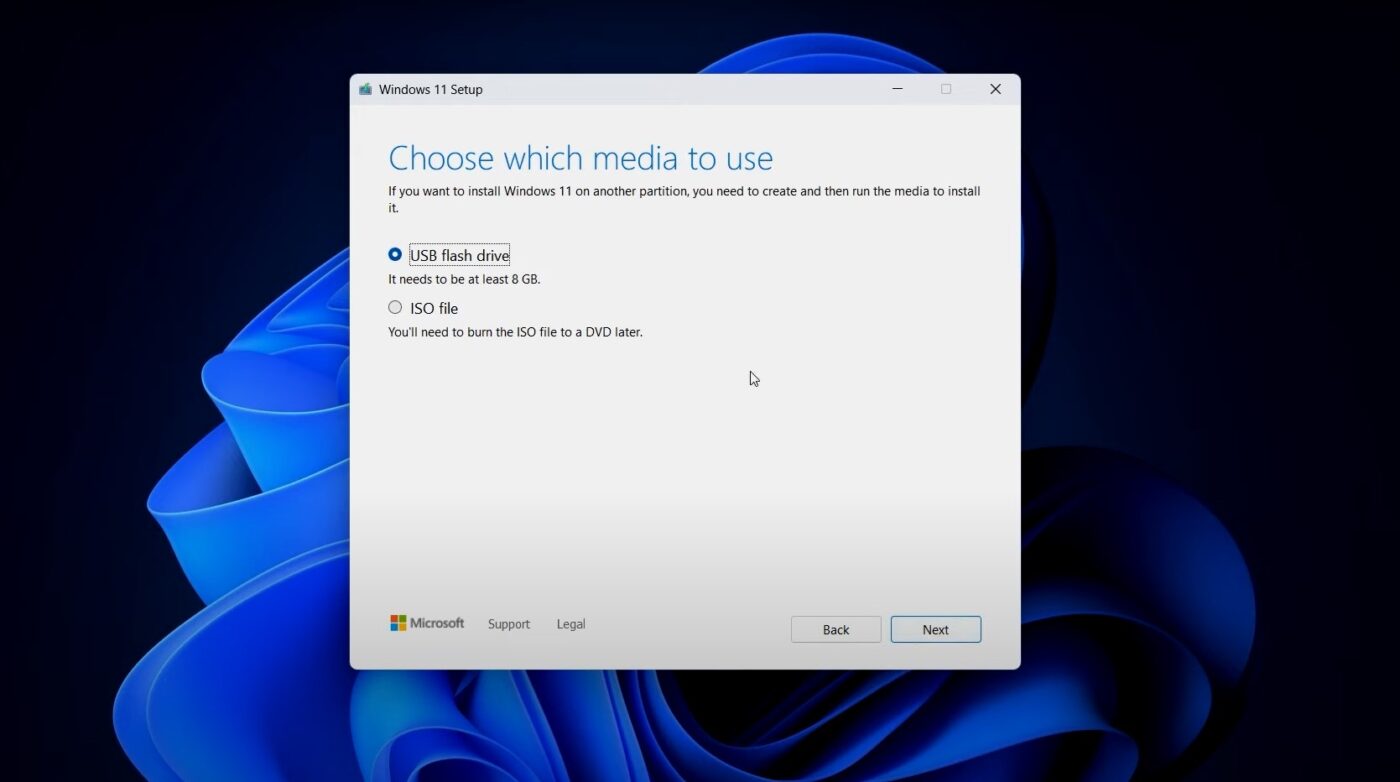
- Select installation media – Choose USB flash drive or ISO file, then click Next.
- If using a USB drive, select it from the list and click Next.
- Create installation media – Wait for the tool to download and prepare the media, then click
- Run the installer – Open the downloaded file and follow the prompts to install Windows 11.
Access Activation Settings
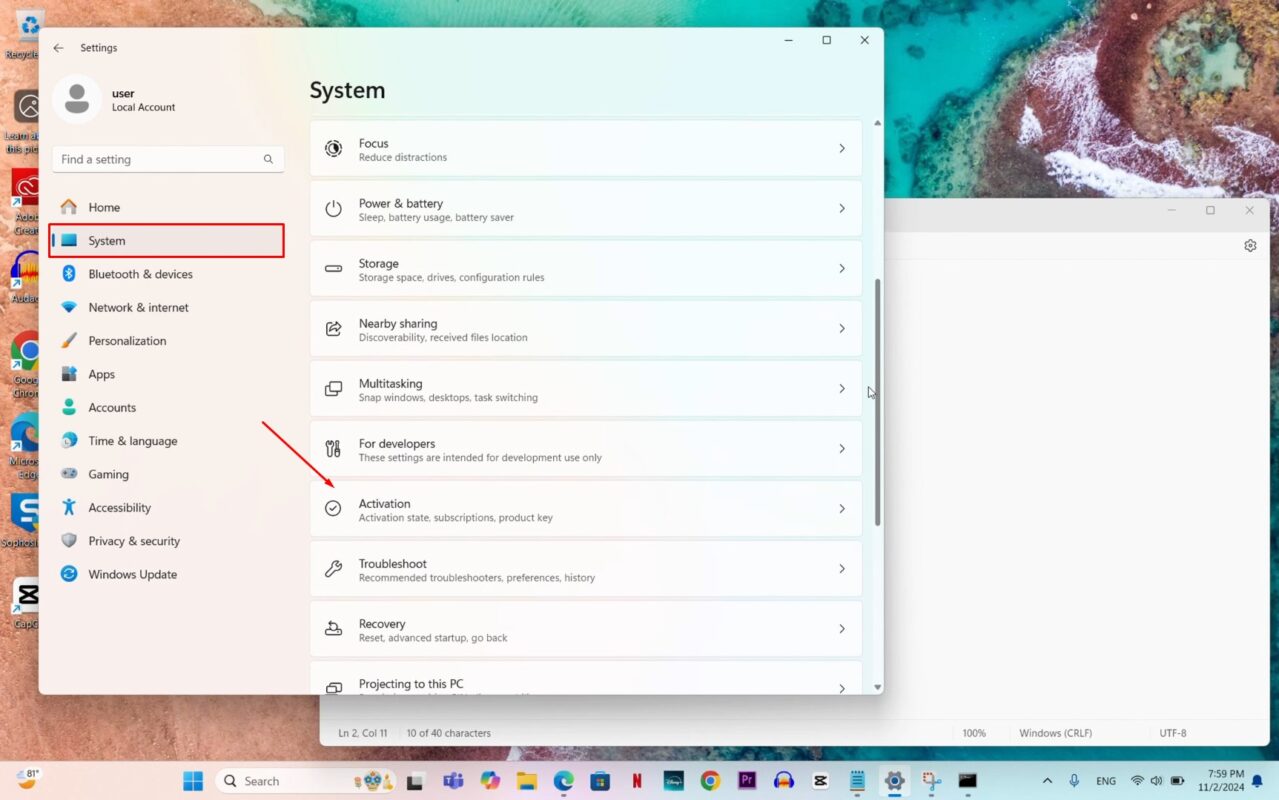
Once the installation is complete, go to the Activation Settings.
- Follow this path: Settings > System > Activation.
- Begin the activation process.
Activating Windows 11
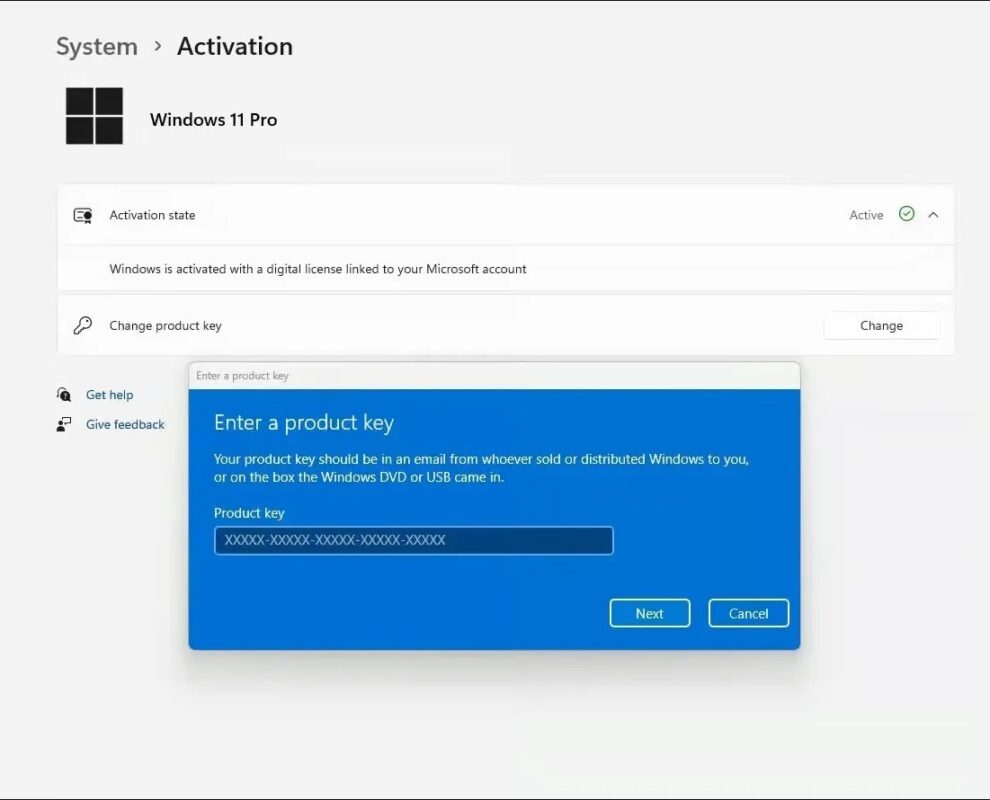
- Open the Activation Settings.
- Click Change product key.
- Enter your valid 25-character product key.
- Click Next.
Once these steps are completed, Windows 11 Pro will be successfully activated.
Need Help?
If you experience any installation or activation issues, our support team is available 24/7. Get fast assistance via live chat at https://windowskeys.uk/ or email us at [email protected].
Get Your Windows 11 Key
Don’t have a key yet? Buy a genuine Windows 11 Pro key or Windows 11 Home key – lifetime activation, delivered instantly by email. Compare all Windows 11 keys.